
Getting Started
What is SESAMm?
SESAMm is an AI-powered platform for ESG controversy monitoring and reputational risk data. The platform processes data from over 4 million sources across more than 100 languages every day, covering more than 5 million companies worldwide. That includes large listed companies, small private companies, infrastructure projects, and everything in between. Data is updated daily, so you see new developments as they emerge rather than waiting for a periodic review cycle.
The platform has two main modules:
Event Monitoring gives you real-time ESG controversy data on individual companies and portfolios. Articles from thousands of sources are grouped into Events and Cases, turning fragmented media coverage into clear, structured controversy timelines. Each event is scored for severity using SESAMm's Intensity Score, and each company gets an aggregated Controversy Exposure Score (CES) that updates daily.
AI Reports generate investor-grade analysis on demand. Enter a company name and your email address, and a structured report lands in your inbox in under 30 minutes. Reports cover ESG risk, deal screening, legal risk, governance, and bulk portfolio screening, depending on your use case.
If you are new to the platform, the next article walks you through how to navigate it step by step.
Getting started with SESAMm
This guide walks you through your first steps on the platform so you can start reviewing ESG data quickly after your account is set up.
Step 1: Log in and set your language
You will receive an email with a link to set your password. Click the link, create your password, and log in. The link is valid for 48 hours. If it has expired, use the Forgot Password option on the login page.
Once logged in, go to your Account Settings (top right) and set your preferred interface language. The platform supports multiple languages including Japanese, French, German, and Spanish.
Step 2: Enable article translation
SESAMm surfaces articles in their original language. To read everything in your preferred language, enable auto-translation from your account settings. Once active, any article you open in the platform will be translated automatically.
Step 3: Look up a company
Type a company name into the search bar on the homepage. Use the description, website, and identifiers in the dropdown to confirm you have the right entity.
Click on the company to go to its controversy page.
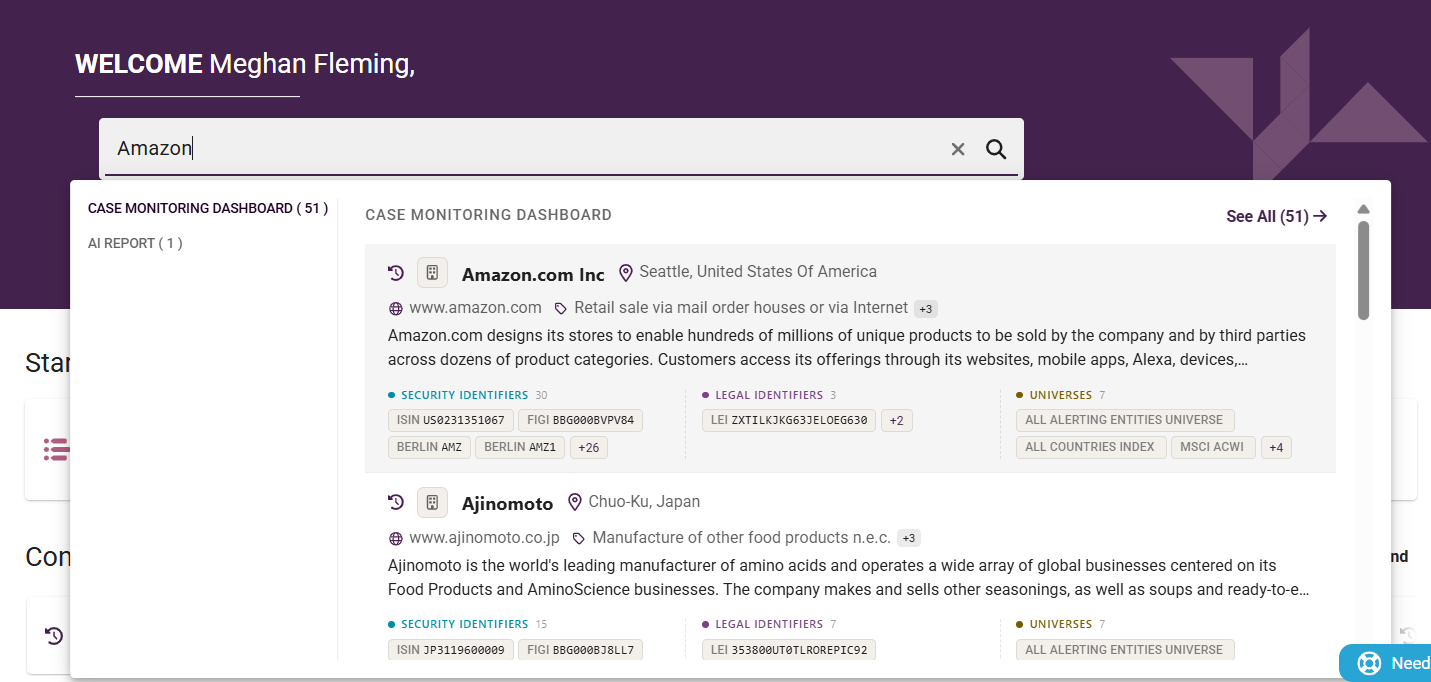
If the company is not in the database, click "Ask SESAMm to add entity to your coverage" on the search page.
Step 4: Understand what you are looking at
On the Case Monitoring page you will see:
Controversy Overview: an AI summary of the main ESG topics for the company

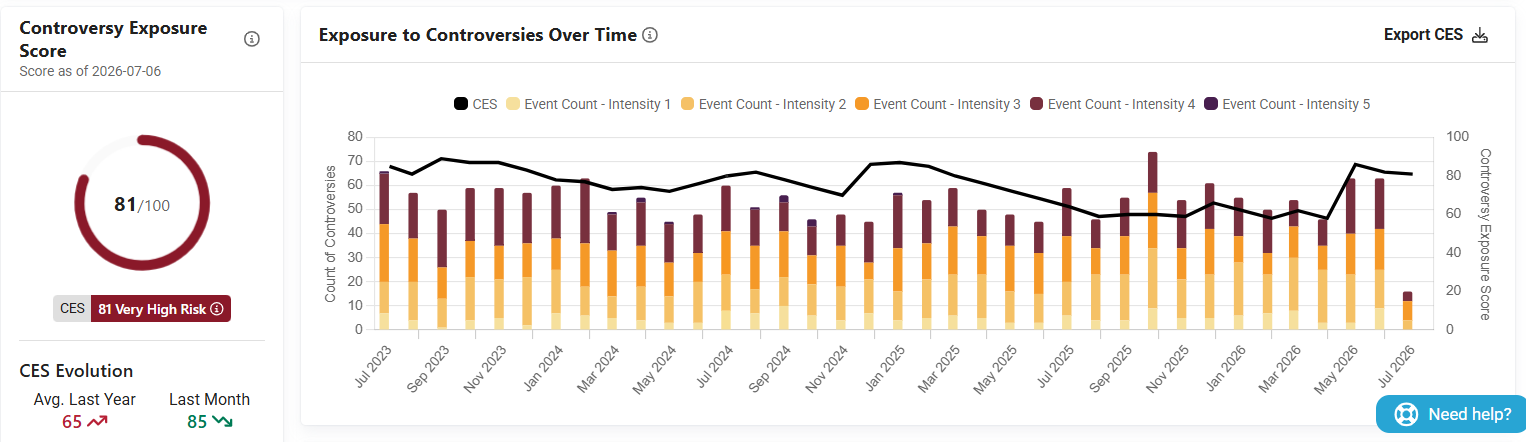
Controversy Exposure Graph: showing the company's Controversy Exposure Score over time (0–100) and the ESG events grouped by Intensity Score
Case list: grouped ESG controversies, each containing Events, which in turn contain Articles
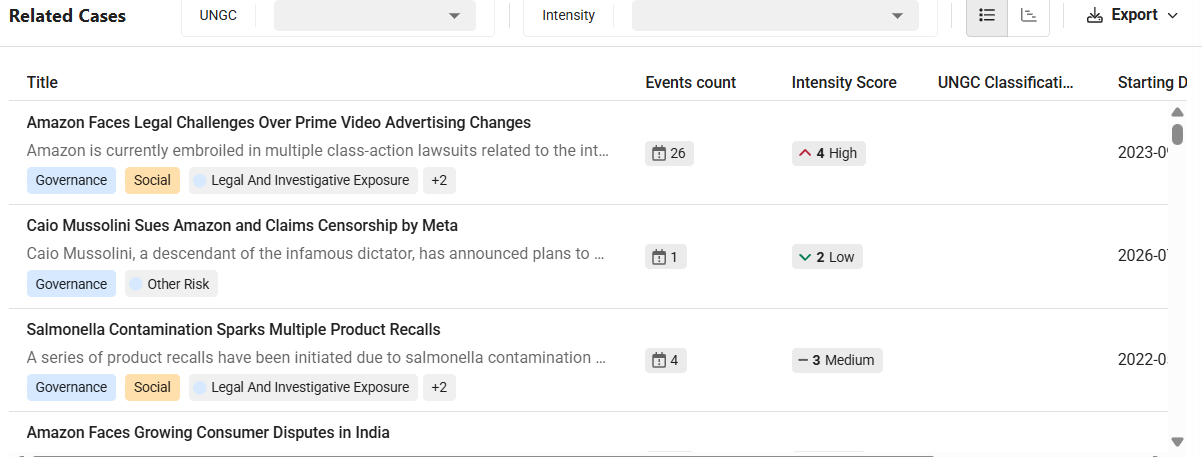
Start with the Controversy Overview to orient yourself, then click into any Case to explore the underlying Events and articles.
Step 5: Review your portfolio
Click Event Monitoring, then Portfolio Monitoring.
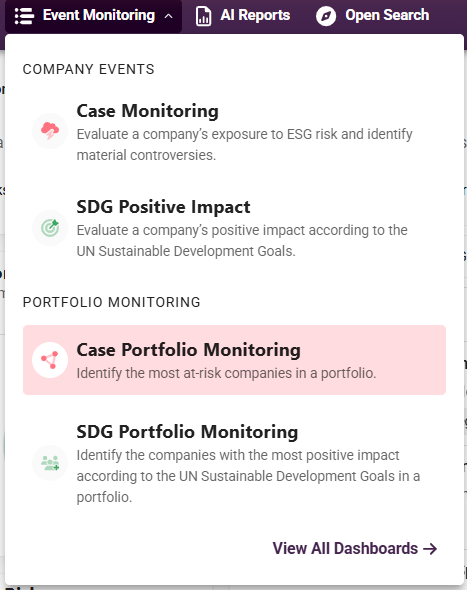
Select your portfolio from the dropdown at the top.
Review the CES rankings. The most exposed companies appear at the top of the ranking.
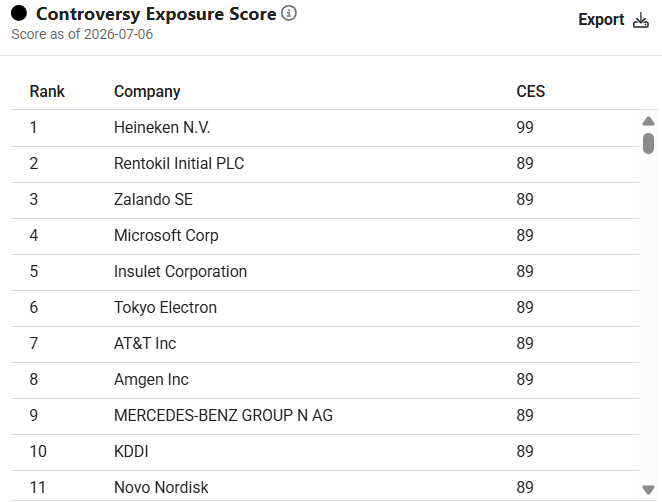
Use the filters to narrow to specific ESG topics or risk categories.

Click any company name to go directly to their Case Monitoring page.
Step 6: Create your own portfolio (optional)
Click the portfolio icon in the navigation.

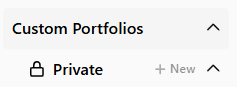
Select New under Custom Portfolios. Give it a name, choose Private (visible only to you) or Shared (visible to all users in your organization), then add companies by searching or by uploading a CSV file.
Step 7: Try an AI Report
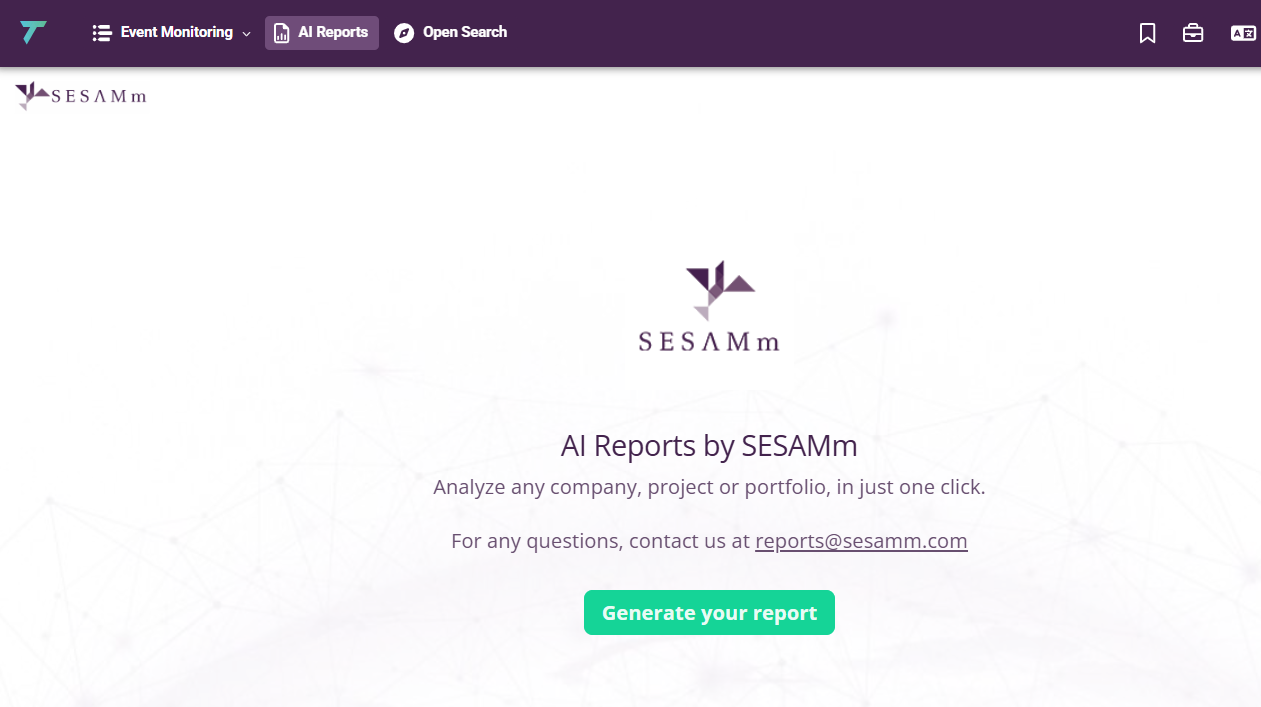
Click AI Reports in the menu. Enter your email address, select the report type, and follow the prompts. The report will arrive in your inbox within 30 minutes (single-company reports) or a few hours (bulk screening).
Getting help
There are two ways to access the methodology documentation for each score and feature:
The Help button
The “Need Help” widget

If you cannot find a company, encounter a technical issue, or have a question, contact your SESAMm account manager directly.